Few things are more frustrating than pressing the power button and realizing your laptop won’t turn on. Whether you rely on your device for work, study, or entertainment, a laptop that refuses to start can disrupt your entire day. The good news is that many common causes are simple to identify and fix. Before assuming the worst, it is worth checking a few basic issues that often prevent laptops from powering up.
1. Dead Battery
One of the most common reasons your laptop won’t turn on is a completely drained battery. If the battery has no charge left, the laptop may show no signs of life.
How to fix it:
Plug in the charger and leave it connected for at least 15 to 30 minutes before trying again. Make sure the charging light appears.
2. Faulty Charger or Power Cable
Sometimes the issue is not the laptop itself but the charger. Damaged cables, bent connectors, or faulty adapters can stop power from reaching the battery.
How to fix it:
Inspect the charger for visible damage. If possible, test with another compatible charger to see if the laptop powers on.
3. Loose Power Connection
A charger that is not properly inserted can prevent charging and startup. This can happen if the charging port is loose or dirty.
How to fix it:
Reconnect the charger firmly. Clean the charging port carefully with compressed air if dust is present.
4. Screen Appears Dead
Sometimes users think the laptop won’t turn on, but the laptop is actually running while the display remains black.
How to fix it:
Listen for fan noise or keyboard lights. Try increasing screen brightness or connecting the laptop to an external monitor.
5. Overheating Problems
Laptops can shut down automatically when internal temperatures become too high. If overheating continues, they may fail to start temporarily.
How to fix it:
Allow the laptop to cool for 20 to 30 minutes. Clean vents and ensure airflow is not blocked by blankets or cushions.
6. RAM Issues
Loose or faulty RAM modules can stop a laptop from booting.
How to fix it:
If you are comfortable opening the laptop, remove and reseat the RAM sticks carefully. If not, seek professional assistance.
7. Hard Drive Failure
A damaged hard drive may prevent the system from loading, making it seem like the laptop won’t turn on.
How to fix it:
Enter BIOS or startup diagnostics if available. If the drive is failing, data recovery and replacement may be needed.
8. Motherboard Problems
The motherboard controls communication between major hardware components. If it fails, the laptop may remain completely unresponsive.
How to fix it:
This issue usually requires professional repair or replacement.
9. Power Button Malfunction
Sometimes the power button itself becomes damaged or disconnected internally.
How to fix it:
Press the button firmly several times. If it feels loose or stuck, a technician may need to replace it.
10. Software or BIOS Errors
Corrupted system files or BIOS issues can also stop startup.
How to fix it:
Try a hard reset by removing the charger and battery (if removable), then holding the power button for 15 seconds. Reconnect power and try again.
Extra Troubleshooting Tips
If your laptop won’t turn on, try these quick checks:
- Disconnect USB devices and accessories
- Remove memory cards or external drives
- Use a different wall outlet
- Watch for blinking lights or beep codes
- Search your laptop brand’s support page for error signals
When to Seek Professional Help
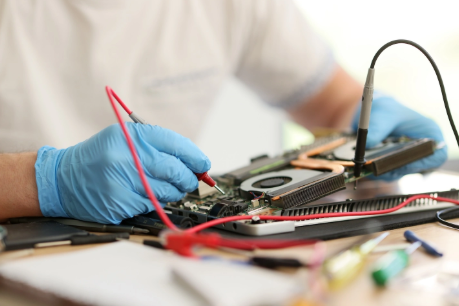
If none of these solutions work, professional repair may be the best option. Internal damage, motherboard failure, liquid spills, or electrical faults require expert diagnosis.
Final Thoughts
When your laptop won’t turn on, it does not always mean the device is permanently damaged. Many startup problems are caused by batteries, chargers, display issues, or minor hardware faults. By following these troubleshooting steps, you may be able to restore your laptop quickly and avoid unnecessary replacement costs. If the problem continues, contacting a repair specialist can save time and protect your important data.